


AI, BIM, Digital Twin, Generative AI, Software
Complete Guide to Bentley License Management – User Roles, Setup, and Administration
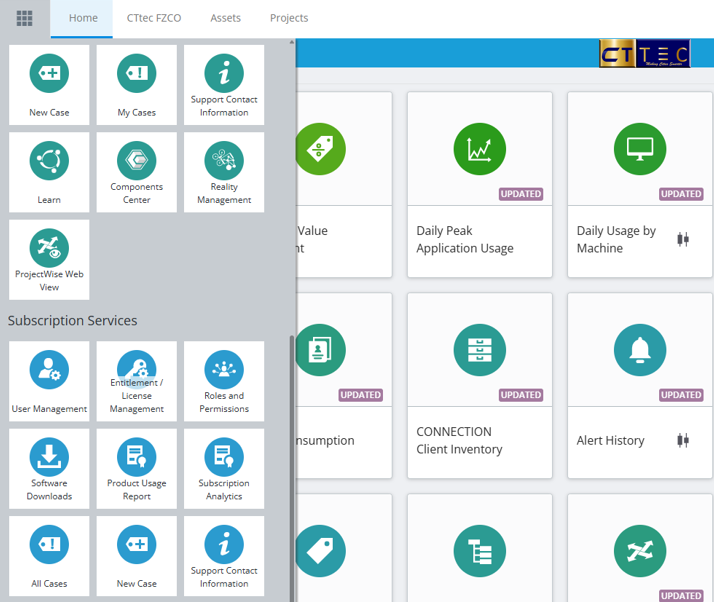
1: How to Manage Bentley Licenses
Managing software licenses is essential for keeping control of access and costs. Bentley provides tools to view, assign, and release licenses online.
Prerequisites
- You must be an Administrator or Co-Administrator.
- Access is via the Subscription Services Portal.
Steps to Manage Licenses
- Log in to https://connect.bentley.com.
- Go to Admin Portal → Subscription Services Portal.
- Select License Management.
- To assign a license → choose product → Assign to User.
- To release a license → select user → Unassign.
- Regularly review license availability to ensure efficiency.
Tip: Monthly checks prevent surprise Quarterly Term License (QTL) charges.
2: How to Add a Co-Administrator in Bentley License Management
AssigSteps to Add a Co-Administrator
The user will now have Co-Administrator rights – meaning they can manage users, view entitlements, and help administer licenses.
- Log in Go to: https://connect.bentley.com
Sign in with your Bentley IMS (business) account.
2. User Management :From the top-right profile menu, select Admin Portal.
Choose User Management.:
3. Select the User
Search for the user you want to make Co-Administrator (they must already exist in your organization).
If they are not listed, click Add User, enter their email, name, and assign them as a regular user first.
4. Assign Co-Administrator Role :Click on the user’s name.
Under Roles, enable Co-Administrator.
You can also assign other roles if needed (e.g., Product Delivery – to download software, or Product Admin – to manage entitlements).
5 . Save Changes
Confirm and save.
3: How to Assign a License in Bentley Systems
Licenses must be assigned before users can access Bentley software.
Prerequisites
- User must exist in your organization.
Steps
- Log in to https://connect.bentley.com.
- Open Admin Portal → User Management.
- Search or add the user.
- Open Product Assignments.
- Toggle ON the software you want to assign.
- Save → user can now access the product.
Remove assignments when staff leave or change roles.
4: How to Remove a User from Bentley User Management
Removing users avoids unwanted license usage and charges.
Prerequisites
- Administrator access is required.
- Steps
- Log in → Admin Portal → User Management.
- Search for the user.
- Open profile → remove product assignments.
- Scroll down → click Remove from Organization.
- Confirm deletion.
Always remove users who have left the company to prevent billing.
5: How to View Bentley License Usage Reports
Monitoring usage helps track compliance and control costs.
Prerequisites
- Administrator or Co-Administrator rights.
Steps
- Go to https://reporting.bentley.com.
- Navigate → Entitlement / License Usage.
- Filter by Product, User, or Date Range.
- Export reports as CSV or PDF.
- Share with finance or IT teams for monitoring.
Usage reports help forecast license needs and avoid QTL penalties.
6: How to Restrict License Access in Bentley Entitlement Management
Not all users need all licenses. Restricting access prevents accidental use.
Steps
- Log in → Admin Portal → Entitlement Management.
- Select the product (e.g., MicroStation).
- Choose Access Settings.
- Assign product only to selected users.
- Save changes.
Restriction helps avoid unintended QTL charges.
7: How to Add a New User to Bentley Organization
Adding users ensures new employees can access the required Bentley software.
Steps
- Log in → Admin Portal → User Management.
- Click Add User.
- Enter Email, First Name, Last Name.
- Assign Roles (User, Co-Admin, Product Delivery Admin).
- Assign Licenses via Product Assignments.
- Save → user receives an email invitation.
Best to onboard users during IT setup to avoid delays.
8: How to Designate a Product Delivery Administrator
Product Delivery Admins can download and distribute Bentley software.
Steps
- Log in → Admin Portal → User Management.
- Select the user.
- Under Roles, enable Product Delivery Administrator.
- Save.
This role is ideal for IT teams managing software installs.
9: How to Check Bentley Subscription Invoices and Billing
Administrators can view billing and invoices in the portal.
Steps
- Log in → Subscription Services Portal.
- In Admin tools, select Billing.
- View Invoices, Payment History, Overages.
- Download invoices for finance.
Monthly reviews ensure accurate financial planning.
10: How to Manage Quarterly Term Licenses (QTL)
QTLs are charges for excess usage beyond subscription entitlements.
How to Manage QTL:
- Regularly check Usage Reports in www.reporting.bentley.com.
- Restrict access via Entitlement Management.
- Remove assignments for inactive users.
- Consider upgrading license count if overuse is frequent.
Proactive management saves costs and prevents billing surprises.